
How to Renew Your SCCE or HCCA Membership
This how-to guide walks you through the steps to renew your SCCE or HCCA membership through your online account. You’ll learn how to locate your invoice, review your membership details, and complete your renewal.
Use this guide if:
You received a renewal notice
You don’t see an invoice to pay
You want to renew before your membership expires
Current Member Join/Renewal Rates
Individual Membership $ 335.00 - Per person
Group Membership $285.00 - Groups of four or more
Student Membership $59.00 - To qualify you must be a full-time or part-time student AND unemployed
Retiree Membership $160.00 annually - To qualify you must have previously been a HCCA member, be retired from active employment, and not be currently receiving more than 500 compensated hours per year.
If you have a varied rate from the Current Member Join/Renewal Rates listed, please note our team members will need to verify within your account.
Instructions to Renew Your Membership
Step-by-step overview
- Step 1: Log in to your account
- Step 2: Access Invoices & Receipts
- Step 3: Select your invoice
- Step 4: Check the default date range
- Step 5: Use the Pay Now option
- Step 6: Locate a missing invoice
- Step 7: View My Memberships & Subscriptions
- Step 8: Access your subscription
- Step 9: (Optional) Add a payment method for auto-renew
- Step 10: Choose Renew
- Step 11: Update address and demographics
- Step 12: Choose your membership plan
- Step 13: Complete checkout
Step 1: Log in to your account
Go to my.corporatecompliance.org and log in using your SCCE/HCCA username and password.
If you do not know your login credentials, use the “Forgot Password” option or contact Member Services
Step 2: Access Invoices & Receipts
From your profile menu, click Invoices & Receipts to view your open invoices.
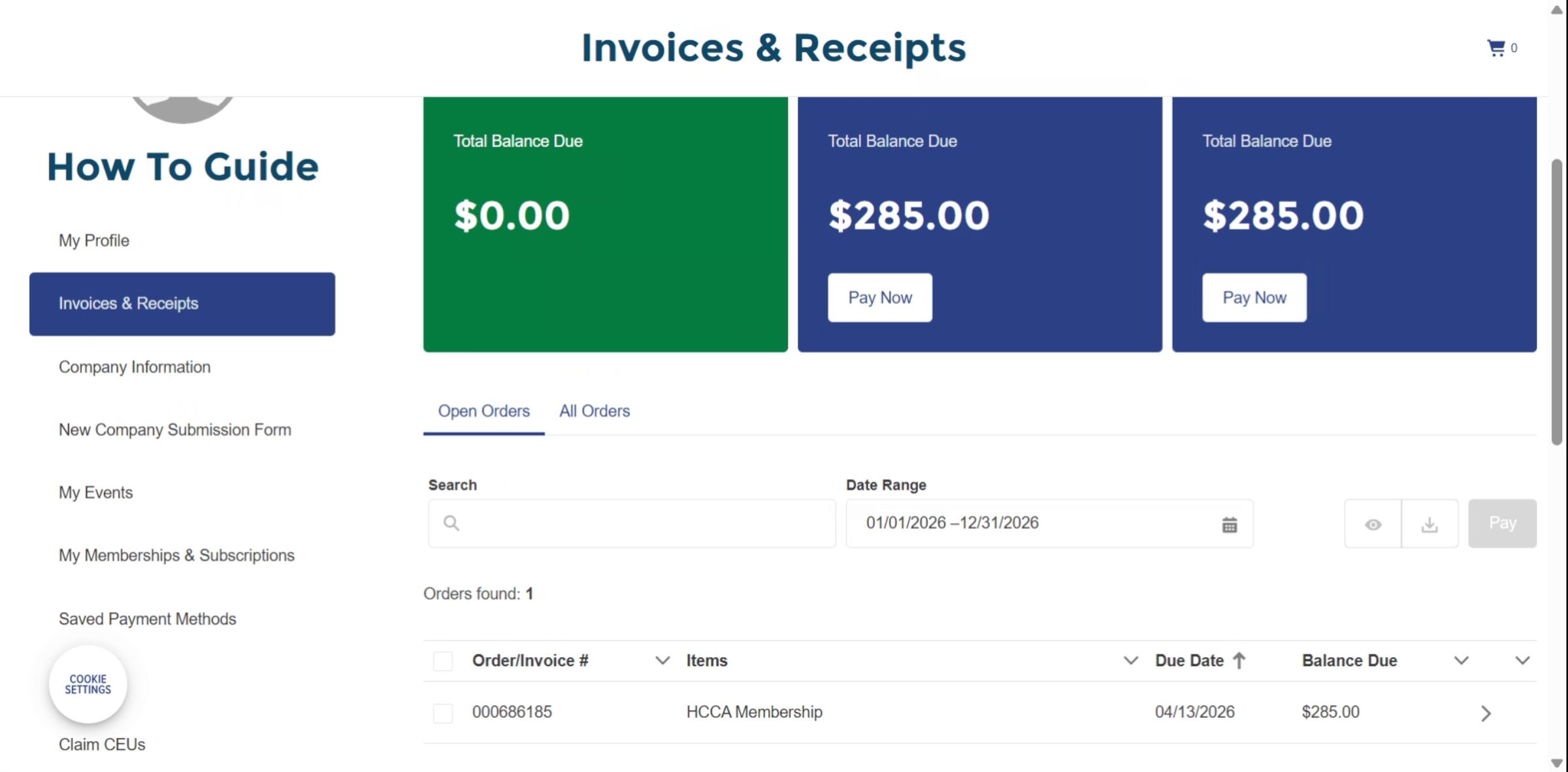
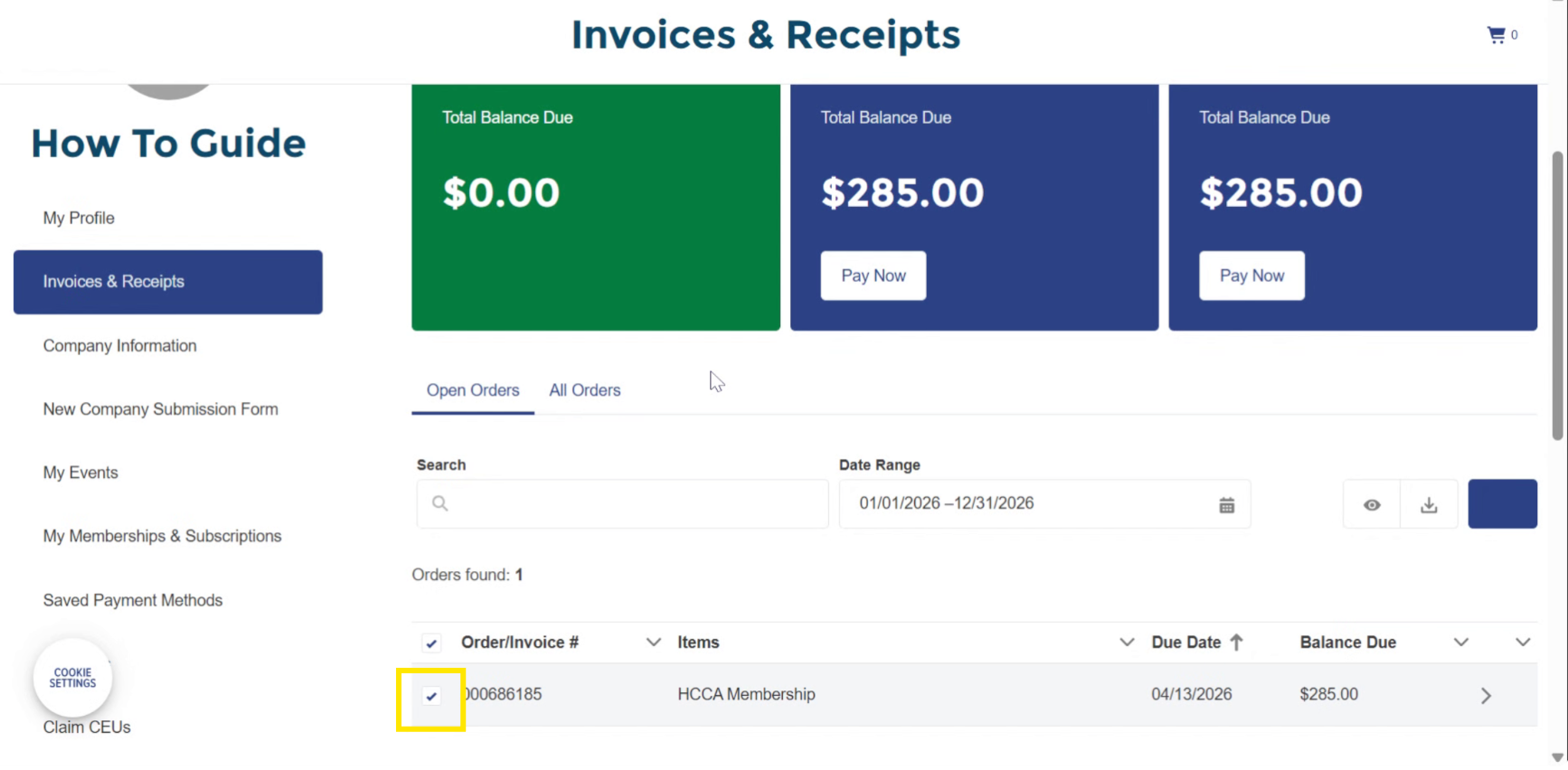
Step 3: Select your invoice
Use the checkbox next to the invoice you want to pay or download.
You can select multiple invoices if needed.
Step 4: Check the default date range
The page defaults to the current calendar year.
If you believe an invoice is missing, adjust the Date Range filter.
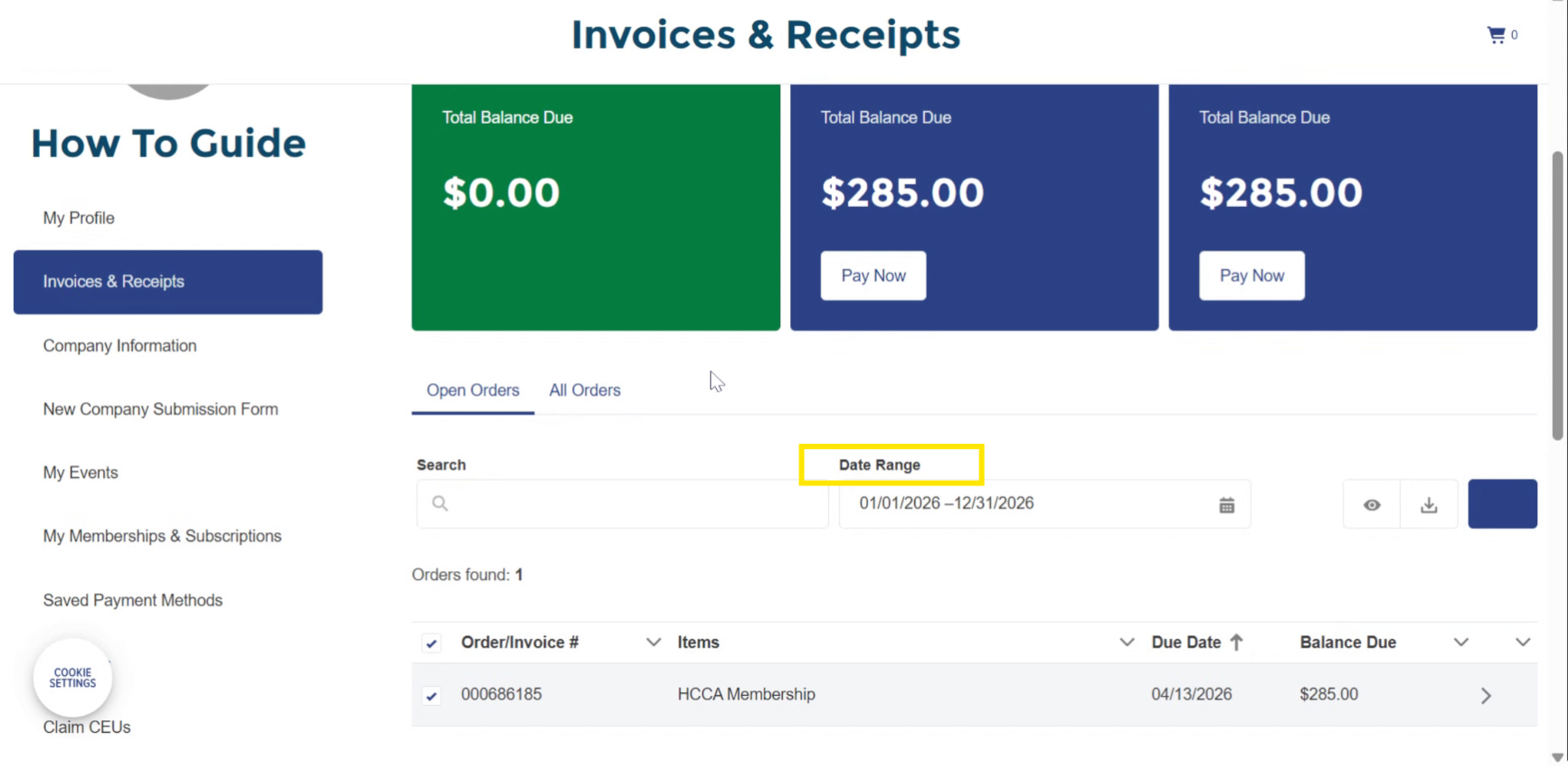
Older or future invoices may not appear unless you change the date range.
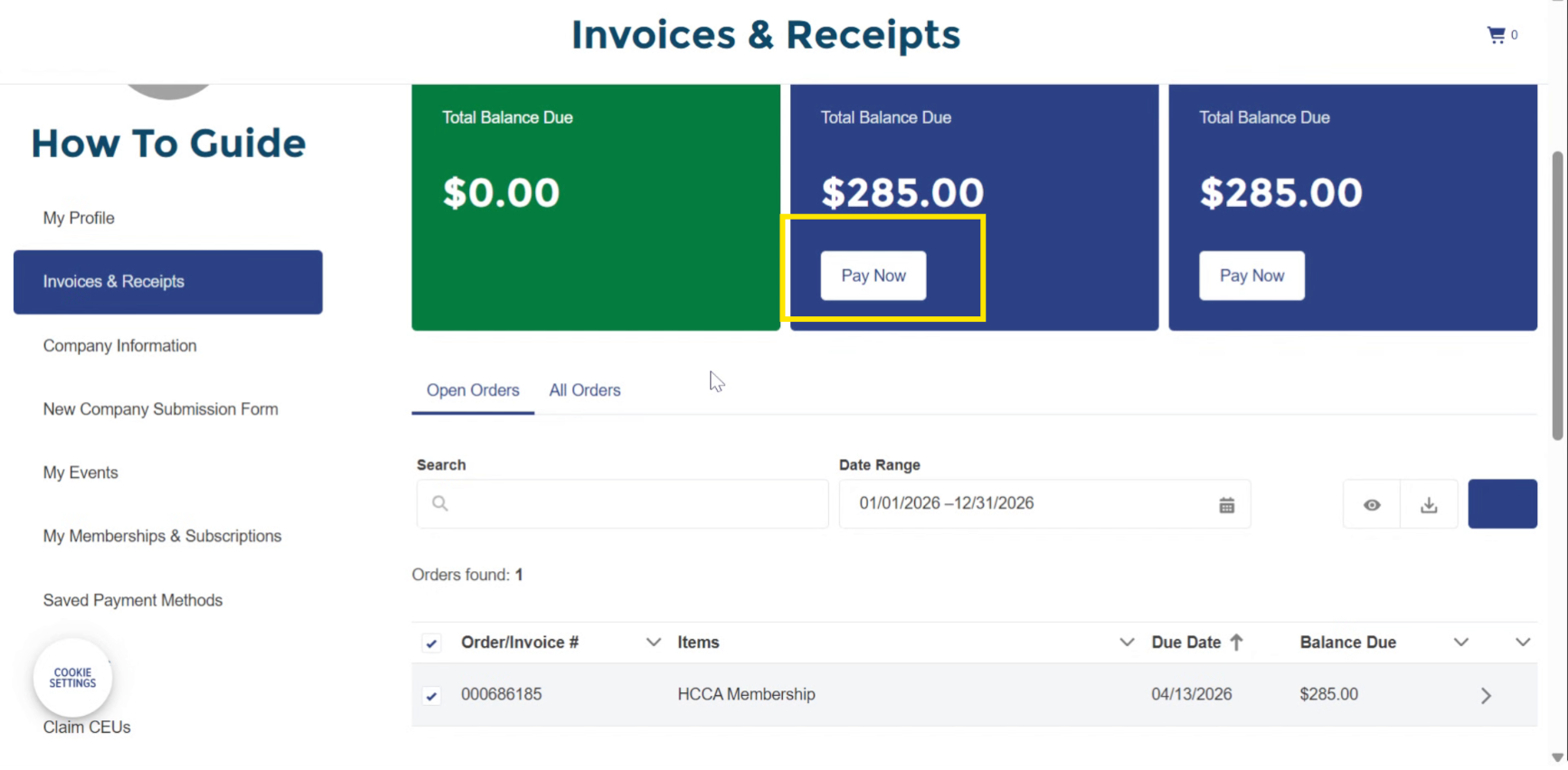
Step 5: Use the Pay Now option
To pay one invoice or your full balance, click Pay Now.
This will take you directly to checkout.
Step 6: Locate a missing invoice
If you recently updated your organization in your profile, your invoice may still be tied to your previous company.
If you still do not see the invoice, continue with the steps below to renew directly from your membership.
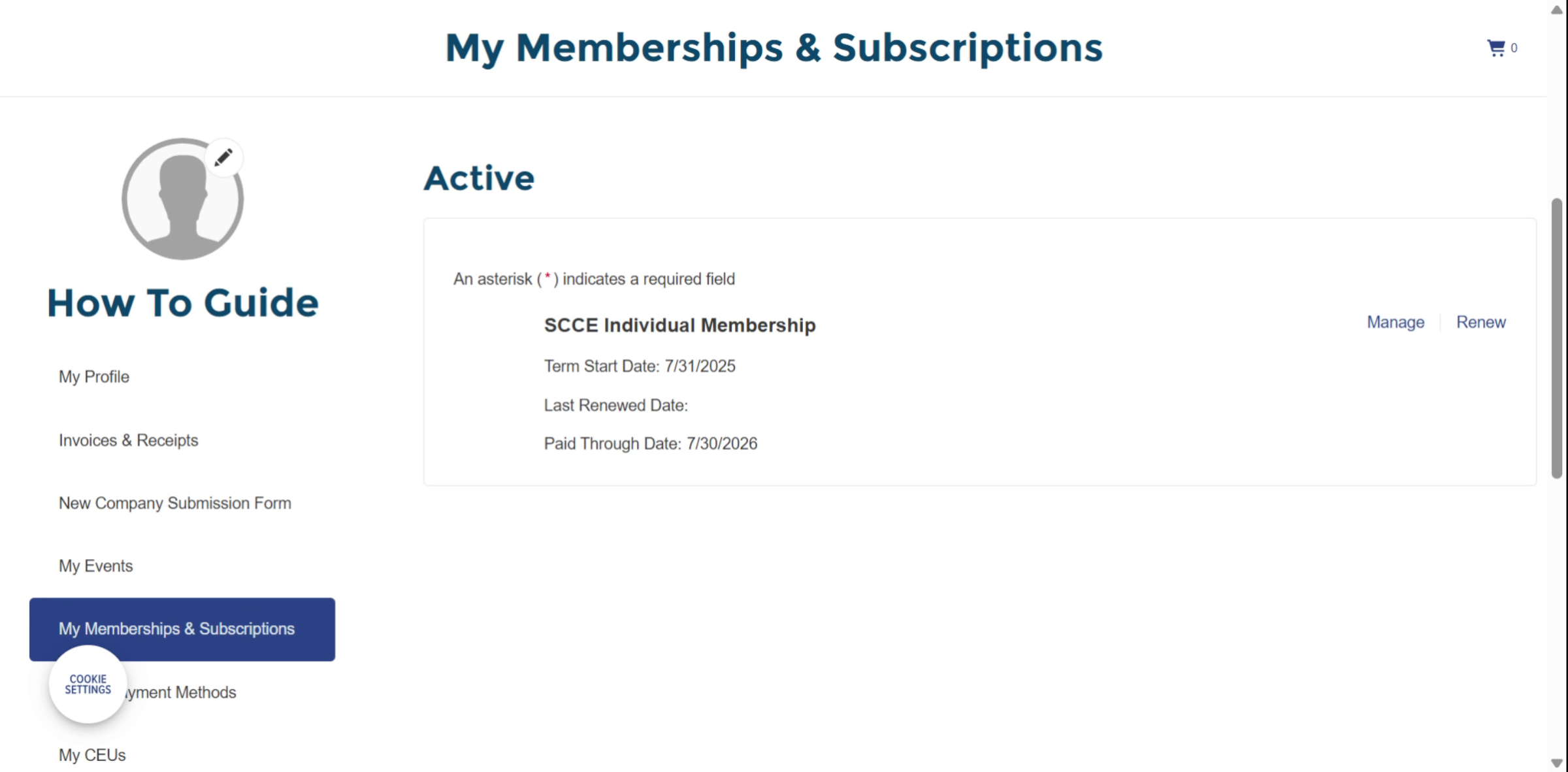
Step 7: View My Memberships & Subscriptions
Click My Memberships & Subscriptions from the left menu.
Here you can view:
Membership status
Term start date
Paid-through date
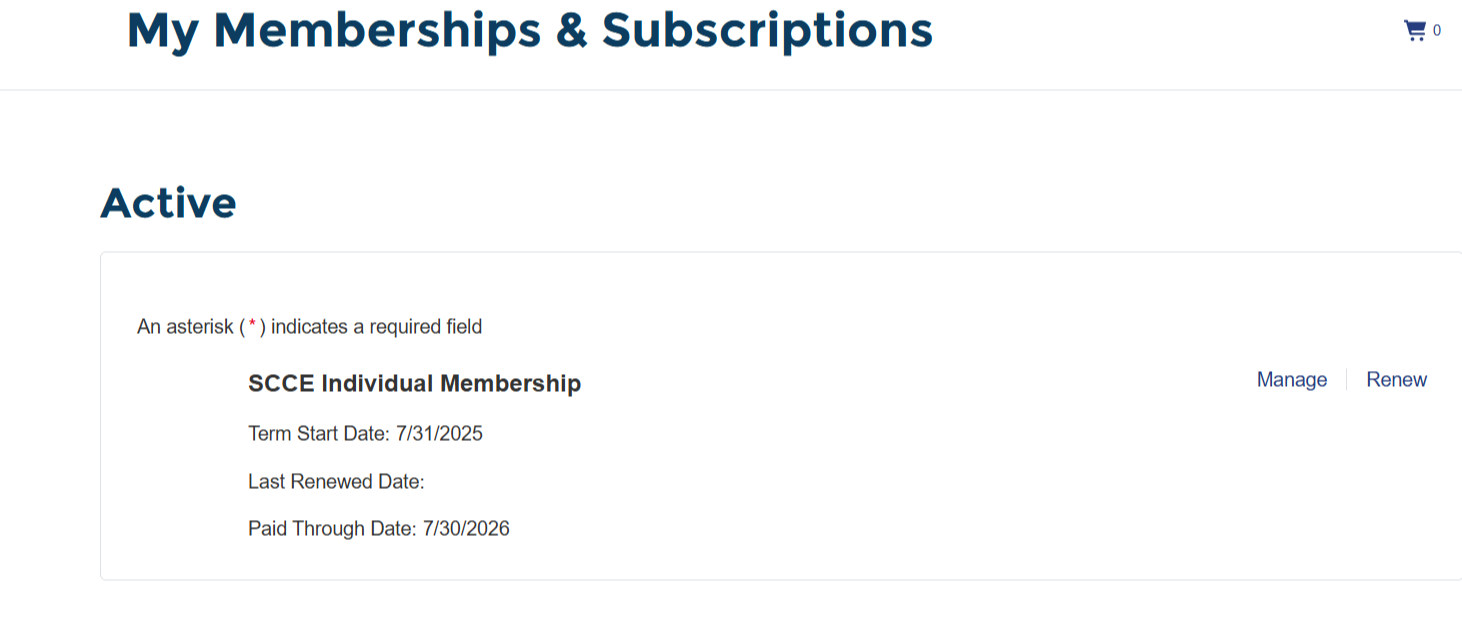
Step 8: Access your subscription
If your membership is active:
Click Renew to renew
Click Manage to update details
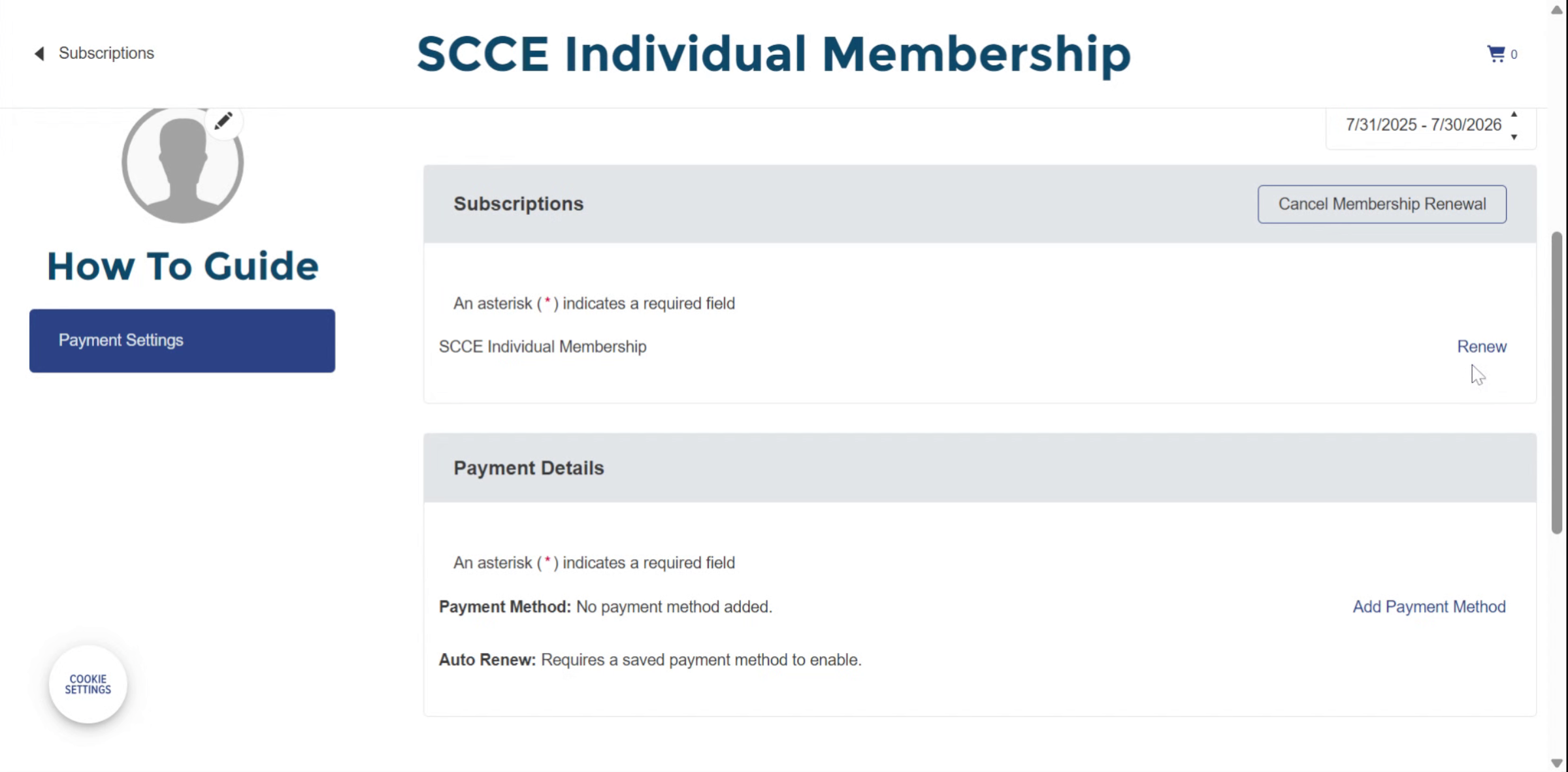
Step 9: (Optional) Add a payment method for auto-renew
Some users choose auto-renew by adding a saved payment method.
Important notes:
Auto-renew requires a saved card
If you need to change an existing card, contact Member Services
Staff can delete a card, but cannot add one for you
If your card is expiring, contact Member Services first so you can re-add it correctly.
Step 10: Choose Renew
After making any updates, click Renew.
This sends you to the membership renewal form.
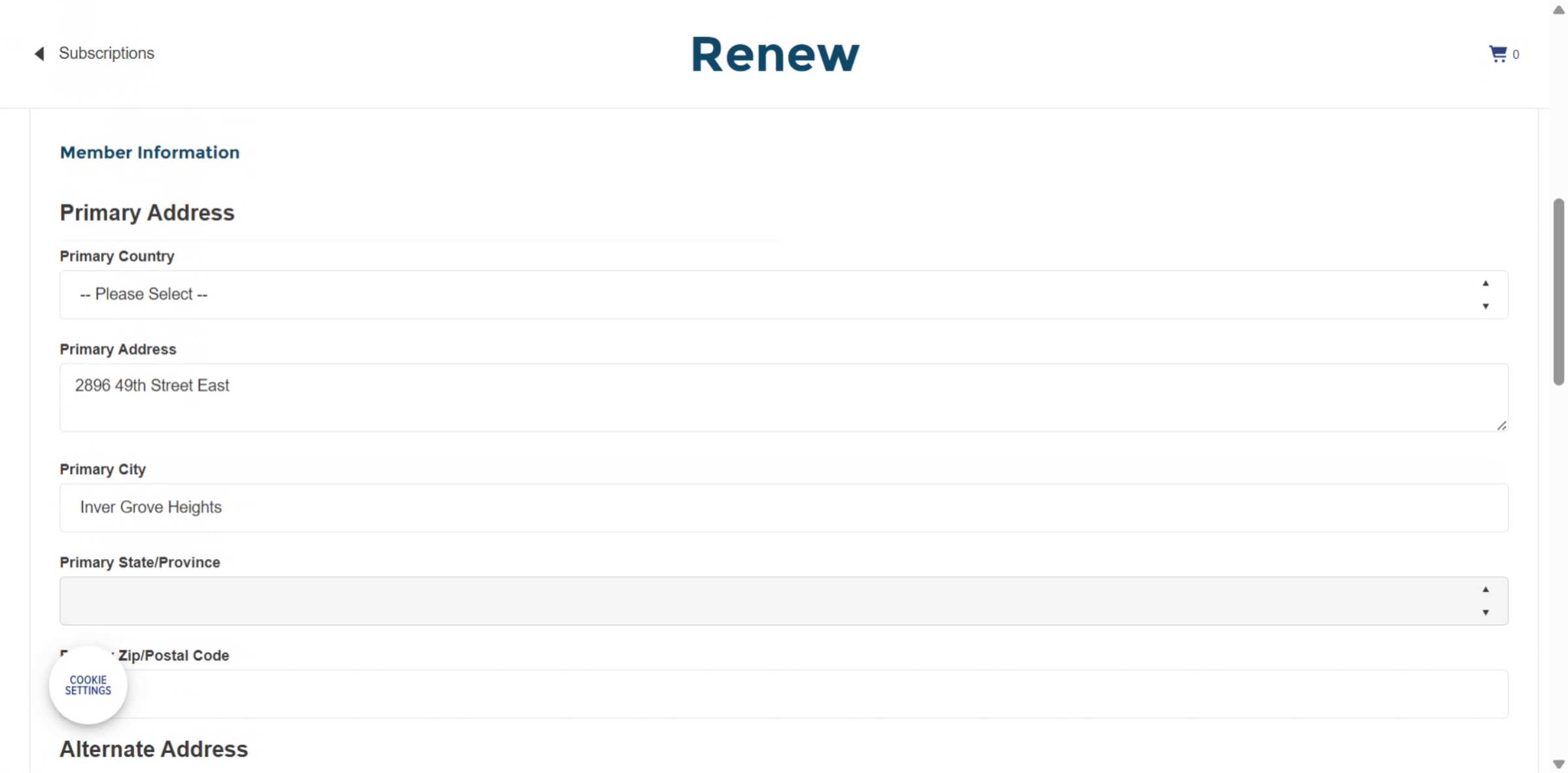
Step 11: Update address and demographics
Confirm your:
Address
Role
Demographics
Click Continue when finished.
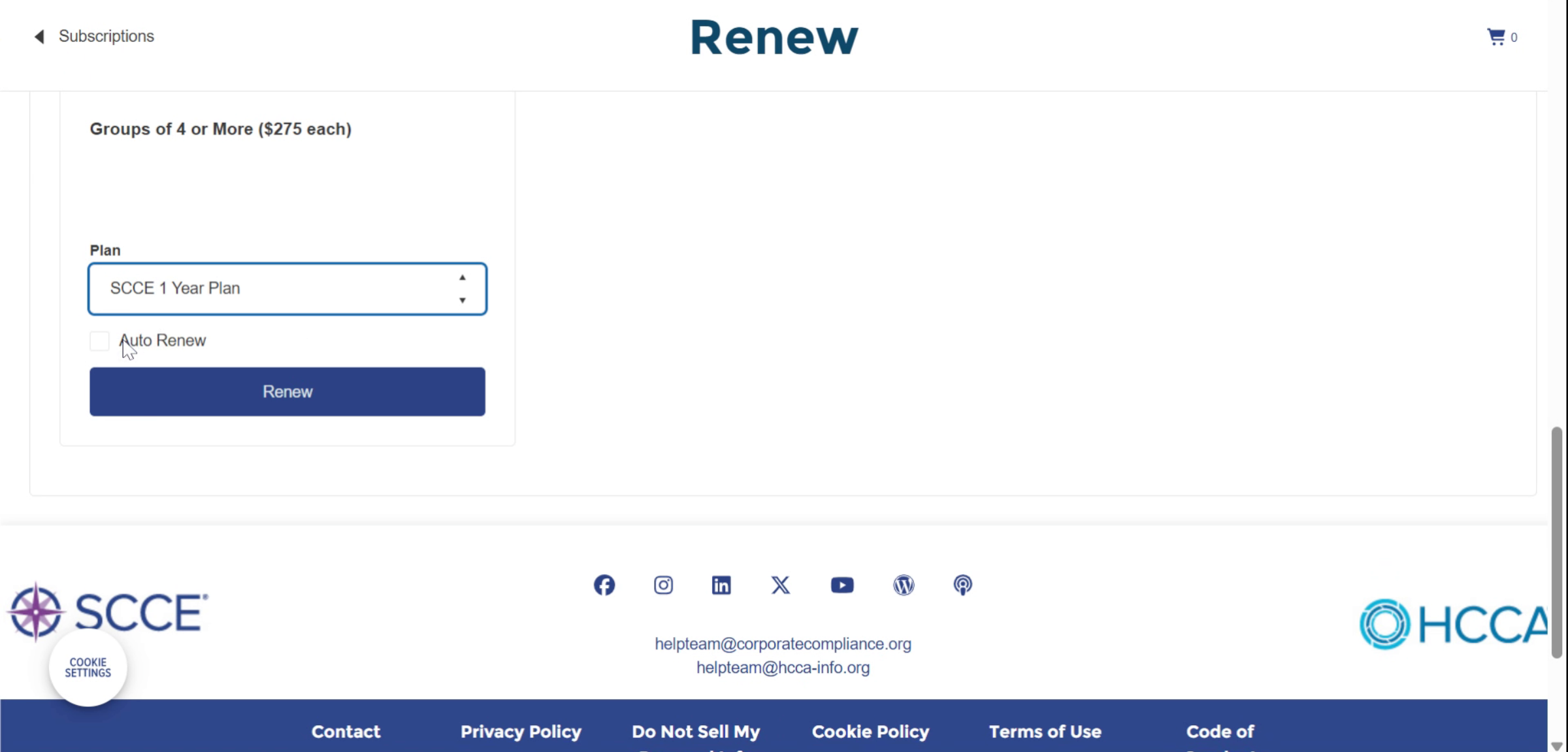
Step 12: Choose your membership plan
Select:
One-year (default)
Two-year (optional)
You may also check Auto-Renew before proceeding.
Step 13: Complete checkout
Click Checkout and follow the prompts to enter your payment.
The amount shown at checkout is the final total. Pricing may differ from the original membership listing.
After payment:
A receipt is emailed to you
Your receipt is saved under Invoices & Receipts → All Orders
Add a video to help users understand the steps visually